Invite Friends in Wardogs: What to Know First
Playing with friends matters in Wardogs because a coordinated squad can communicate privately, recognize each other quickly, and make smarter moves around the map. The important catch is that Wardogs does not use a traditional pre-match party lobby. You must first get into the same live server, then join the same faction and squad.
The smoothest approach is to choose a server together before deploying. One player can enter first and create a squad, while everyone else follows through Steam or the Server Browser. Joining a friend through Steam is often fastest, but available faction and squad slots still determine whether everyone lands together.
| Method | Best for | What happens |
|---|---|---|
| Steam invite or Join Game | Small groups joining an active friend | Takes players to the friend’s current server and can place them with that faction and squad when space is available |
| Server Browser | Larger groups coordinating before deployment | Everyone selects the same server, then chooses the same faction and joins or creates a squad |
| Join By ID | Sharing a specific server directly | Players enter the six-digit Server ID from the Server Browser |
| Open squad | Filling remaining spots quickly | Friends and other unassigned teammates can join without an invitation |
Before anyone deploys, use a voice call outside the game to agree on the server, faction, and squad plan. That small amount of coordination avoids the common problem of everyone joining different servers or becoming stuck on separate teams.
Use Steam to Join Friends Quickly
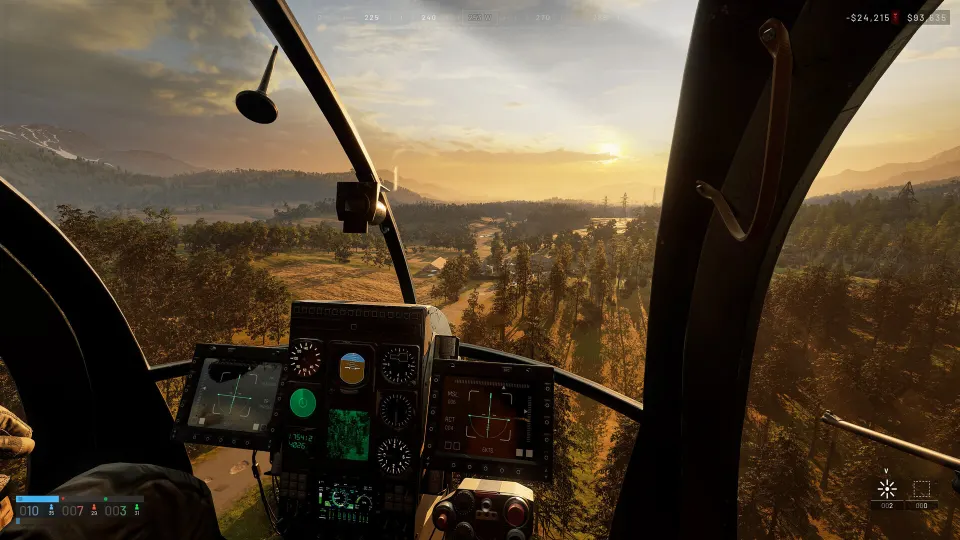
Steam provides the most direct way to follow a friend who is already playing Wardogs. This option is especially useful when one person has found a suitable server, selected the intended faction, and opened a squad for the group.
Have the player inside the match stay available while the rest of the group joins. If their server is full or their faction has no free slots, Steam cannot bypass those limits. In that situation, choose another server together rather than waiting indefinitely.
Follow these steps to join through Steam:
- Ask one friend to join a suitable server first.
- Have them select the faction your group wants to play.
- Ask them to create a squad after entering the faction.
- Open the Steam Friends list.
- Right-click the friend who is already in Wardogs.
- Choose Join Game or accept their Invite To Game request.
- Confirm that you entered the same server, faction, and squad.
A Steam invitation can be sent after the host has joined a match. Right-clicking a friend in the Steam Friends list and choosing Invite To Game lets them accept the invitation and travel to that server.
| Situation | Recommended action | Why |
|---|---|---|
| One friend is already deployed | Join that friend through Steam | It reduces the work of finding the correct server manually |
| Your group has not chosen a server | Use the Server Browser first | Everyone can compare player counts and make one shared choice |
| A faction is full | Try another server or wait for a slot | There is no direct faction invitation that guarantees entry |
| Your friend’s squad is locked | Ask a squad member to invite you from Unassigned Players | Locked squads require an invitation to enter |
| Steam does not place you with the group | Check faction and squad availability | Server access alone does not guarantee every available slot |
Steam is a convenience tool, not a full party system. Treat it as a shortcut to the correct server and verify your team status once you load in.
Join the Same Server and Faction
The Server Browser is the reliable fallback when Steam joining is unavailable or when several players need to coordinate at once. Open Deploy, choose the appropriate region, and look for the same server name or number as your friends.
A lower-population server generally gives your group better odds of selecting the same faction. Full or nearly full servers may leave some friends unable to enter, force them onto another faction, or prevent them from joining the desired squad.
If someone shares a six-digit Server ID, select Join By ID at the bottom of the Server Browser and enter it. This is useful when server names are difficult to identify or the group wants to make sure every player targets the exact same match.
Once everyone has entered, select the same faction. Wardogs has three factions, and faction selection depends on open capacity. Your group cannot directly invite players into its faction, so you may need to wait for a slot or move to a less populated server.
| Group size or condition | Best setup | Main risk |
|---|---|---|
| Two friends | One joins first; the other uses Steam | The faction or squad may fill before the second player arrives |
| Three to six friends | Agree on a low-population server and queue together | Players may select different factions if they join at different times |
| Large group | Use Server Browser, voice chat, and a shared faction plan | One squad may not hold every player, requiring multiple squads |
| Desired faction is crowded | Wait briefly or pick a new server | Repeated retries can waste more time than switching servers |
| Server is almost full | Avoid it unless your group is already inside | Limited openings make coordinated entry unreliable |
If your preferred faction is unavailable, do not assume a friend invitation will solve it. Decide whether the group would rather wait, choose another faction, or find a new server with room for everyone.
Create or Join a Squad After Deployment
After joining the same faction, create a squad from inside the match. Press Esc and select Create Squad near the upper-right area of the menu. Wardogs assigns the squad its next available NATO alphabet letter.
Friends can then open the same squad screen and join an open squad. If the squad is locked, a member can select a player from the Unassigned Players list and invite them directly.
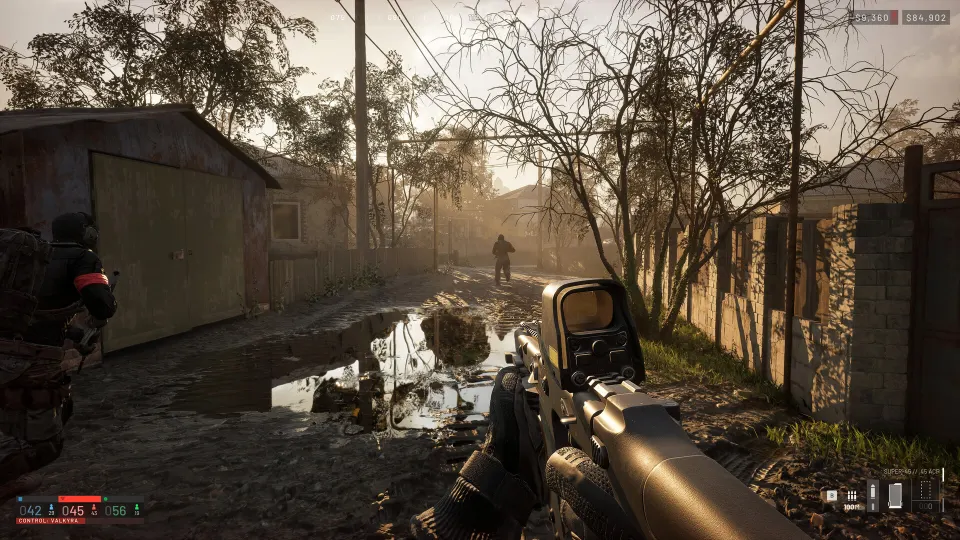
Squads are more valuable than a simple label. They give your group a dedicated voice channel that works over any distance, unlike proximity chat. Proximity chat only carries within range and can be heard by enemies nearby, so reserve sensitive plans for squad voice.
Squad members also stand out through gold indicators. Their minimap arrows are gold rather than the general team color, and a downed squadmate’s revive icon is easier to recognize. That makes it faster to identify who needs help during a hectic fight.
| Squad setting or feature | How it helps | When to use it |
|---|---|---|
| Create Squad | Establishes a group after joining a faction | Use it as soon as the first friend enters the team |
| Open squad | Lets friends and other teammates join freely | Use it while your group is still arriving |
| Locked squad | Prevents random players from taking open slots | Lock it once your intended group is together |
| Squad voice chat | Keeps communication private across the map | Use for callouts, plans, and regroup instructions |
| Gold squad markers | Distinguishes close teammates from the wider faction | Use them to find allies, follow movement, and spot revives |
A practical setup is to leave the squad open until all expected friends arrive, then lock it if your group wants a private unit. If your friends are split across squads, you can still play on the same faction, but the dedicated voice channel and gold markers only apply within each squad.
FAQ: Wardogs Invite Friends
Can you invite friends before entering a Wardogs match?
No. Wardogs does not provide a conventional pre-match party lobby. Join a server first, then use Steam invitations, Steam’s Join Game option, or the Server Browser to bring friends to that live match.
How does Wardogs invite friends through Steam work?
After you are inside a match, open the Steam Friends list, right-click a friend, and select Invite To Game. They can accept the invitation to join your server. Alternatively, they can right-click you and choose Join Game.
Will joining through Steam always put friends on the same team?
Not always. Steam can bring them to the same server and may place them on your faction and squad if space is available. Faction capacity and squad availability still apply, so choose a less populated server when possible.
How do friends join the same server manually?
Open the Server Browser, agree on a server number or name, and have everyone join it. You can also share the six-digit Server ID and use Join By ID to target the same server directly.
How do you create a squad in Wardogs?
After selecting a faction, press Esc and choose Create Squad. Friends on the same faction can join it from the squad menu. If you lock the squad, invite them from the Unassigned Players list.
Why should friends use a squad instead of only faction chat?
A squad provides long-range squad-only voice chat and clearer gold teammate markers. Proximity chat is limited by distance and can be heard by nearby enemies, making squad chat the safer place for coordination.